Whether you just got your first laptop, finally retired that ancient desktop, or you’re just tired of nodding along when people talk tech — you’re in the right place. This guide breaks down computer basics in plain English, no jargon required.
We use computers for almost everything now: job applications, video calls with family, streaming, online banking, and so much more. But a lot of people feel like they’re just pressing buttons and hoping for the best.
Understanding how your computer works — even just the fundamentals — means less frustration, fewer “why isn’t this working?!” moments, and more confidence every time you sit down at a screen. It’s not about becoming a tech expert. It’s about feeling in control.

You don’t need to crack it open to understand what’s going on under the hood.
The CPU (Central Processing Unit) is your computer’s brain. Every time you open an app, load a webpage, or type a document, the CPU is doing the work. A faster CPU means things happen more quickly.
RAM (Random Access Memory) is your computer’s short-term memory. It holds the information your computer is actively using like the 15 browser tabs you have open right now. More RAM means your computer can handle more tasks at once without slowing down.
Storage (Hard Drive or SSD) is where everything lives permanently — your photos, documents, downloads, and apps. SSDs (Solid State Drives) are the newer, faster type. HDDs (Hard Disk Drives) are older and slower but usually hold more data for less money.
Think of it this way: RAM is your desk (workspace), storage is your filing cabinet (long-term), and the CPU is you doing the actual work.
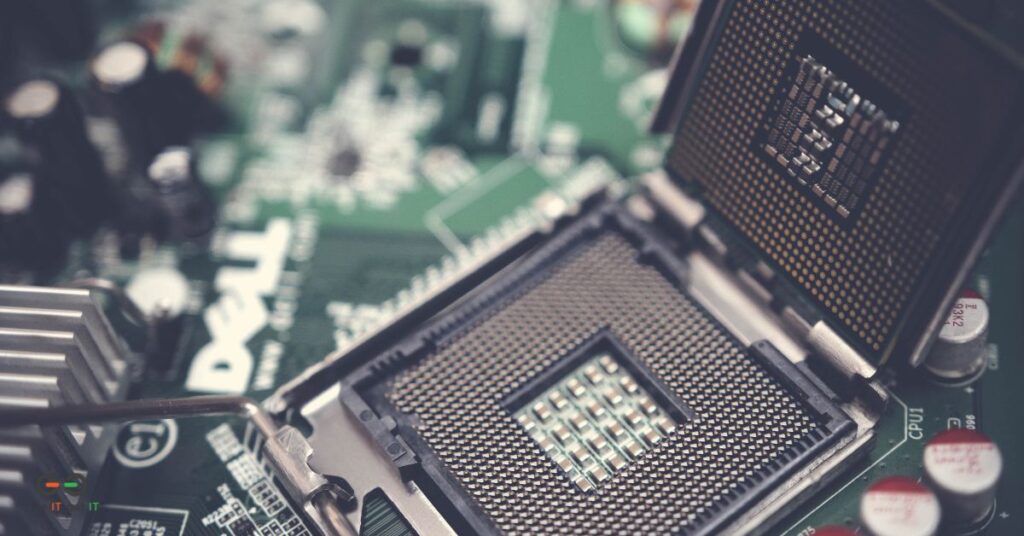
Hardware is anything physical — the parts of your computer you can actually hold, touch, or plug in.
The screen (monitor) shows you everything that is happening on your computer. Think of it like a window into your computer’s world.
The keyboard and mouse (or trackpad on a laptop) are how you talk to your computer. You type, click, and point to tell it what to do.
Extras you can plug in are called peripherals. These include things like printers, webcams, headphones, and external hard drives. Most plug into a small rectangular slot on your computer called a USB port, and many work automatically the moment you connect them.
Your router and modem are the hardware that bring the internet into your home and send it to your devices.
Software is everything that runs on your hardware but has no physical form. You cannot hold it, but without it, your computer is just an expensive paperweight.
Software includes the programs and apps you use every day, like a web browser, email, or word processor. It also includes your operating system, which is the master program that runs everything in the background. On most PCs that is Windows. On Apple computers it is macOS.
Think of hardware as the kitchen and software as the recipes. You need both to make anything happen.
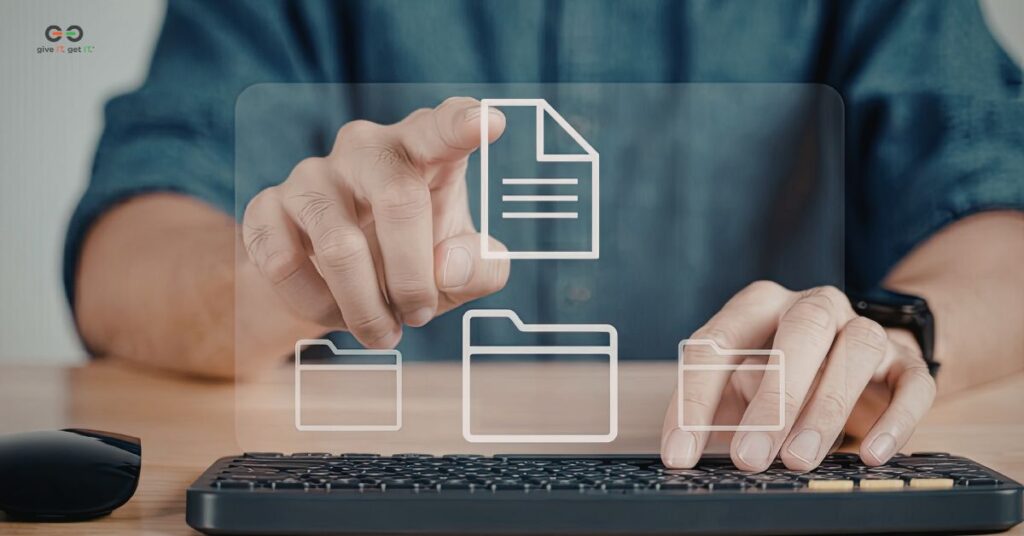
Think of your computer’s file system like a digital version of your home. You wouldn’t dump every piece of paper you own in a pile on the floor. It’s the same idea here.
A few habits that make a big difference:
Charging your laptop: Plug it in before it hits 20% if you can. Letting it drain to zero regularly can wear out the battery faster over time. Most modern laptops are fine to keep plugged in, but it’s good practice to unplug and use the battery periodically – and then plug in and fully charge the battery (struggling to explain this – periodic use of just battery power down to 50% and then a full recharge extends the battery life significantly) before unplugging.
Restarting your computer: This solves more problems than you’d think. Running slow? Restart. App frozen? Restart. Something acting weird for no reason? Restart. It clears out temporary files and gives your computer a fresh start. Think of it like a quick nap for your machine.
Taking a screenshot: Need to save something on your screen?
Computer running slow? Try restarting first. If that doesn’t help, check if you have too many apps running at once, or if your storage is nearly full. Both can drag things down. Having many browser tabs open is one of the most common slow down issues – we also ask people to think of the latest software/app install or system update they performed before the slowdown became noticeable as it might be creating a conflict. Adding/using more than one online security program (ad-spyware, virus, Norton-McAfee) will also cause slowdowns.
Can’t connect to Wi-Fi? Turn Wi-Fi off and back on. If that doesn’t work, restart your router (unplug it, wait 30 seconds, plug it back in). Still nothing? Restart your computer.
Laptop won’t turn on or the power button is blinking? Make sure it’s actually plugged in and charging. If it’s plugged in and still not responding, try holding the power button down for 10 seconds to force a shutdown, then press it again to restart.
App frozen? On Windows, press Ctrl + Shift + Esc to open Task Manager and force-close it. On a Mac, press Command + Option + Escape to bring up Force Quit.
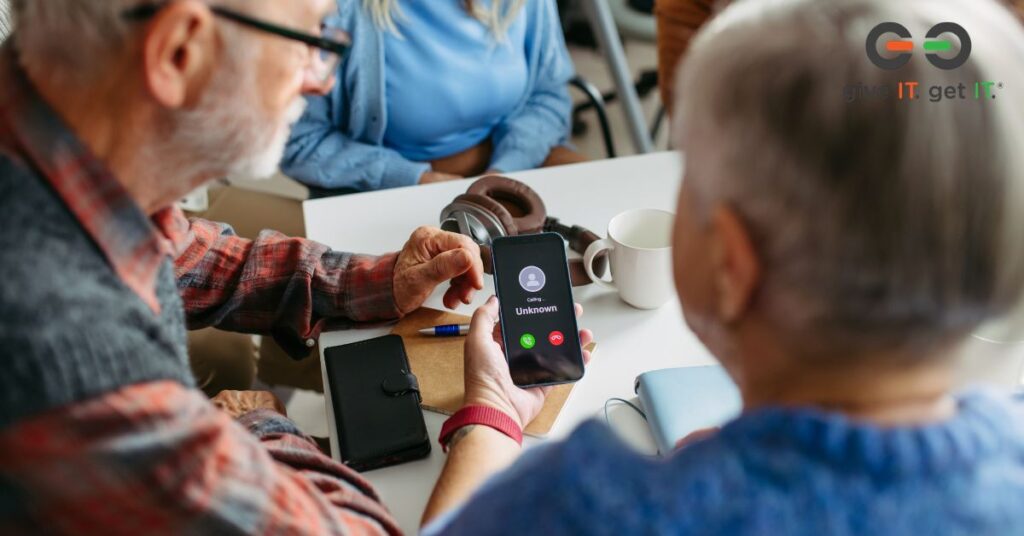
One of the most important skills for any computer user is knowing how to spot a scam. A scam is when someone tries to trick you into giving away your personal information, your password, or your money.
Phishing is the most common type. This is when you get a fake email or text that looks like it is from your bank, Amazon, or even the government. It usually asks you to click a link or enter your information. When in doubt, do not click. Go directly to the website by typing the address yourself.
Pop-up warnings that say your computer has a virus and tell you to call a phone number are almost always fake. Close the window and do not call the number.
If someone asks you to pay with a gift card, it is a scam. Every single time. No real business or government agency does this.
A good rule of thumb: if something feels urgent, too good to be true, or just a little off, stop and ask someone you trust before doing anything.
Helpful resources:
Once you’re comfortable with the basics, there’s a lot of great (and free) learning out there:
Learning tech doesn’t have to be overwhelming. …and remember – if you are a ‘get IT’ participant/client, you can always contact our free helpdesk for support! Everyone starts somewhere, and the basics really do make everything else easier. Start with what you need most, take it one step at a time, and don’t be afraid to look things up or ask for help.
The goal isn’t to know everything — it’s to feel confident enough to figure things out as you go.
Want to keep building your skills? Join our community of learners, educators, and volunteers working to close the digital divide across New England.
We have a full list of helpful resources including articles, links, how-to videos, and tutorials for all levels on our site. No spam, ever. Join our email list by clicking here.
Do you need a computer and ongoing tech support? We are here to help. Click the link here.