(207) 355-7727
Insights And Stories: The Give IT. Get IT. Blog
Keeping Kids Safe Online Internet Safety with give IT get IT Maine

iPhone and Mac Already Have Parental Controls. Here’s How to Use Them. Keeping Kids Safe Online

Apple Screen Time, free and built in

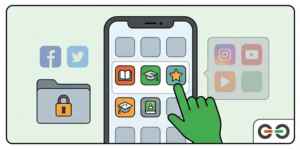
Before you spend a dollar on a screen time app, know this: Apple already built one in. It’s called Screen Time, and it works on iPhone, iPad, and Mac. It’s free.
What It Does

  • Sets app limits and daily downtime schedules
  • Restricts content by age rating
  • Blocks explicit content and web categories
  • Requires approval before downloading new apps
  • Is enforced by the operating system itself, not by an app that can be deleted

How to Find It

iPhone and iPad

  • Open Settings, then tap Screen Time.
  • To manage your child’s device from your own phone, first add your child to Family Sharing. Apple’s step-by-step guide walks you through it.

Keeping Kids Safe Online Internet Safety with give IT get IT Maine

Mac

  • Open the Apple menu, choose System Settings, then click Screen Time.
  • The same limits and downtime schedules are available on a Mac.


Why It’s Worth Starting Here

This is the biggest advantage over paid competitors. Third-party apps like Kids360 have to work around iOS restrictions, and reviewers consistently find their time limits and blocks slipping on iPhone. Screen Time doesn’t have that problem, because it’s part of the operating system itself.

The Catch

  • No location tracking or GPS history. That is a Find My feature, not a Screen Time feature
  • No message or social media content monitoring
  • A determined teen who learns the parent passcode can change their own limits

Bottom Line

If your family has iPhones, iPads, or Macs, start here before paying for anything. Screen Time covers app limits and downtime better than most paid competitors manage on Apple hardware. Add a paid tool only if you need something Screen Time doesn’t offer, like location history.

Meet Our Help Desk

Getting a computer is just the beginning. Every give IT. get IT. participant can use our free Help Desk for troubleshooting, software questions, password resets, and getting started. Want to set up family safety tools on your give IT. get IT. computer? See our Windows 11 guide or our Linux Mint guide, and call us if you get stuck.

Most issues can be solved remotely, by phone, by email, or with direct access to your device. No driving, no waiting rooms. Learn more about our Help Desk.

Please note: the Help Desk supports the computers we provide. give IT. get IT. does not provide or support Apple or Android devices.

Need a Computer? Apply Through give IT. get IT.

give IT. get IT. provides warrantied, refurbished computers, with free user support, to eligible individuals and families. Every system comes with Windows 11 or Linux Mint, plus access to our Help Desk.

  • Who can apply: legal residents of Maine, New Hampshire, Massachusetts, and Vermont whose household income and goals fit our program guidelines
  • Good to know: this program is not free. There is a participation fee, and sponsors or grants may help cover it. If cost is a concern, call (207) 338-4233 and select Option 3 before you apply
  • A tip for families with kids: desktop computers are the easiest to supervise. Choose a laptop only if you need to carry it

Ready? Apply for a computer at giveitgetit.org

Parent & Teacher Resources for Online Safety

Related Reading: Safety Guides for Every Device

Every guide in this series is written for beginners. Pick the one that matches your device.

More from give IT. get IT.

give IT. get IT. helps families navigate technology safely, regardless of budget. Reach out to our team for a free digital literacy session. Learn more at giveitgetit.org.


Join our community of donors, volunteers, educators, and partners working to close the digital divide across New England. We'll keep you informed, inspired, and involved. No spam ever.