Google Family Link, free and built in
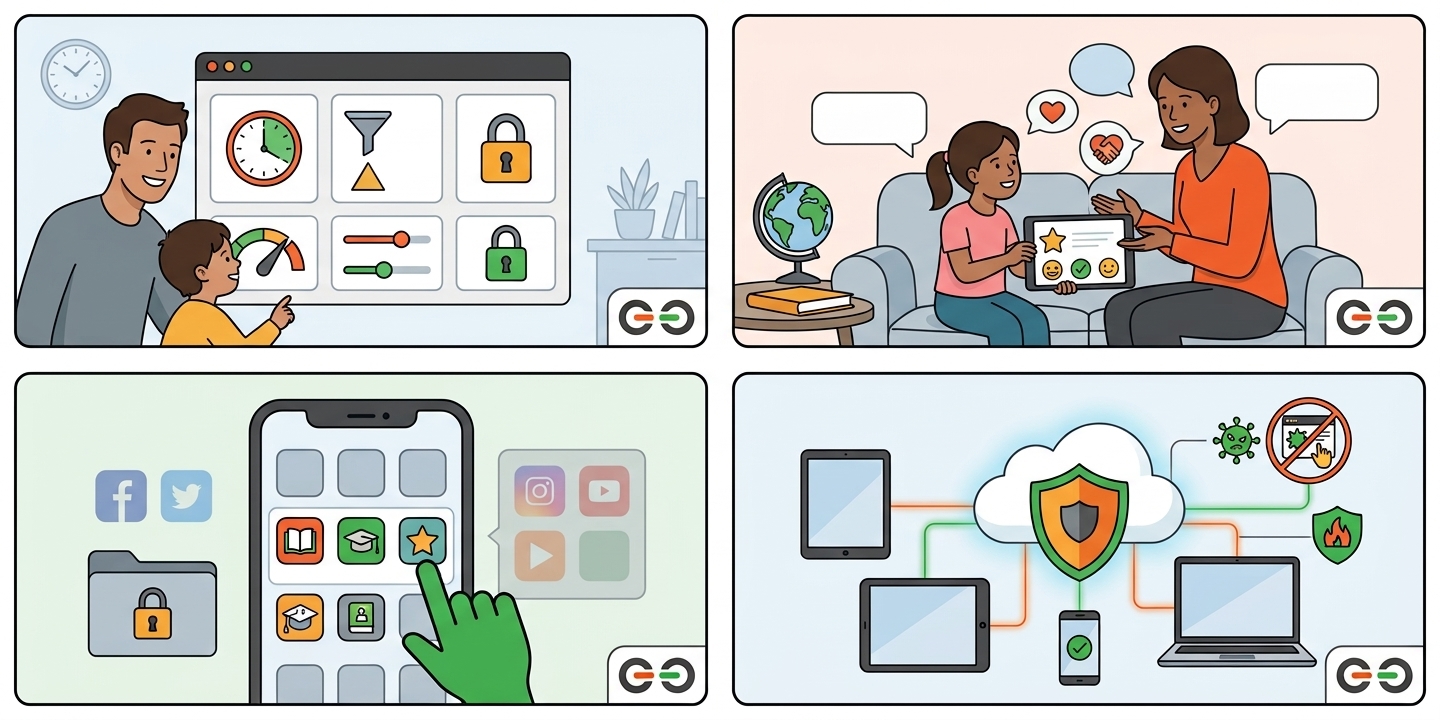
Before you spend a dollar on a screen time app, know this: Google already makes one for Android. It’s called Google Family Link, and it’s free. It works on Android phones, Android tablets, and Chromebooks. See Google’s Family Link page for details and a device compatibility list.
Family Link is built by Google, not by a third party trying to work around Android’s own permissions. That means fewer workarounds, fewer bugs, and no monthly bill.
If your family’s biggest need is screen time limits and app approval, start with Family Link. It’s free, it’s official, and it covers the basics well. Only look at a paid app if you need something Family Link doesn’t do, like content monitoring or detailed location history.
Getting a computer is just the beginning. Every give IT. get IT. participant can use our free Help Desk for troubleshooting, software questions, password resets, and getting started. Want to set up family safety tools on your give IT. get IT. computer? See our Windows 11 guide or our Linux Mint guide, and call us if you get stuck.
Most issues can be solved remotely, by phone, by email, or with direct access to your device. No driving, no waiting rooms. Learn more about our Help Desk.
Please note: the Help Desk supports the computers we provide. give IT. get IT. does not provide or support Apple or Android devices.
Need a Computer? Apply Through give IT. get IT.
give IT. get IT. provides warrantied, refurbished computers, with free user support, to eligible individuals and families. Every system comes with Windows 11 or Linux Mint, plus access to our Help Desk.
Ready? Apply for a computer at giveitgetit.org
Every guide in this series is written for beginners. Pick the one that matches your device.
give IT. get IT. helps families navigate technology safely, regardless of budget. Reach out to our team for a free digital literacy session. Learn more at giveitgetit.org.