Windows 11 Already Has Parental Controls. Here’s How to Use Them. Keeping Kids Safe Online
Microsoft Family Safety, free and built in
If your family uses a Windows 11 computer, you already have a free set of parental controls. It’s called Microsoft Family Safety, and you manage it from your own phone or computer. It also covers Xbox and Android apps, all from one family account.
What It Does
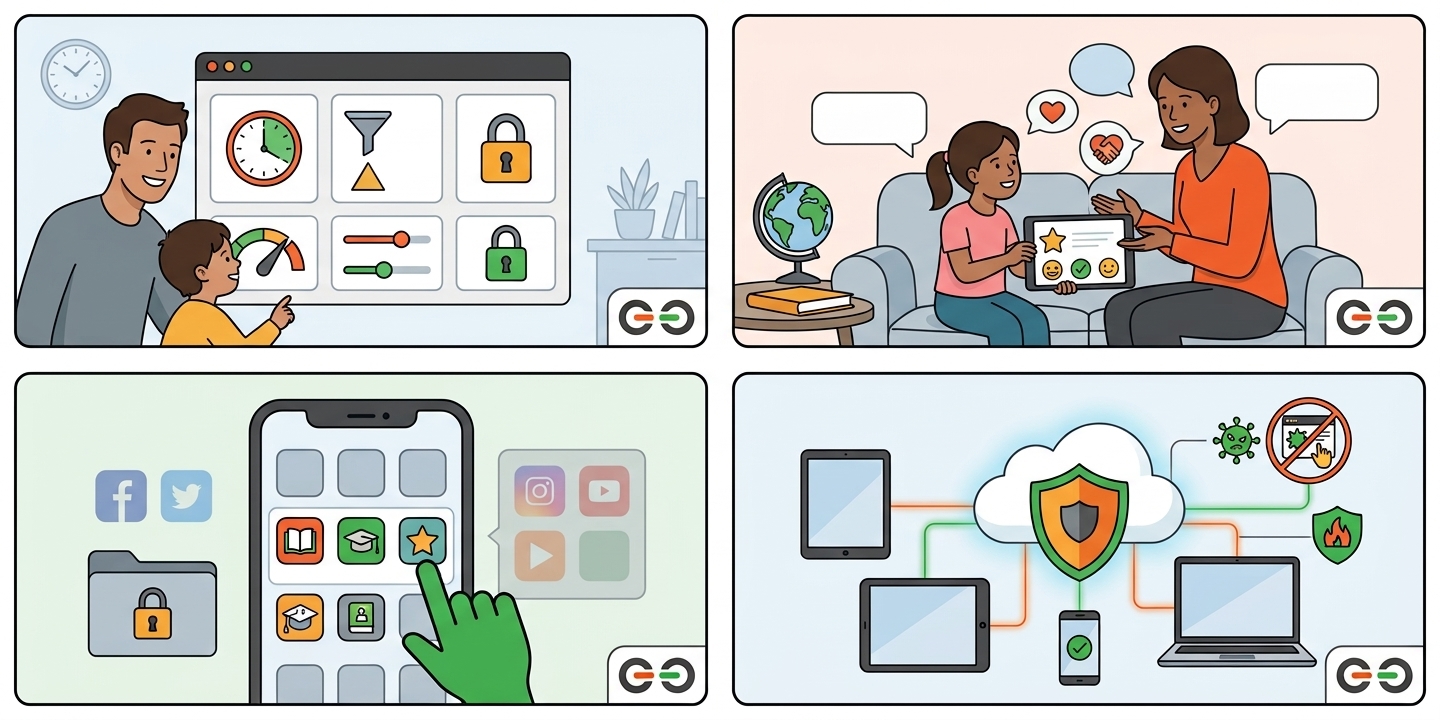
- Sets a daily screen time limit or a schedule, so the computer shuts off at bedtime
- Limits time on individual apps and games
- Filters websites and search results when your child uses Microsoft Edge
- Sets age limits on apps and games from the Microsoft Store
- Lets your child ask for more time, and you say yes or no from your phone
- Sends a weekly activity report by email
How to Find It
On the computer, open Settings, then Accounts, then Family. You can also visit family.microsoft.com from any device. Look for the Family Safety icon if you install the phone app. Microsoft also has an official Family Safety page.
How to Set It Up
- Create a free Microsoft account for yourself if you do not have one.
- Go to family.microsoft.com, sign in, and choose Add a family member.
- Add your child. Each child needs their own Microsoft account, and children under 13 need a parent to approve it.
- Have your child sign in to the Windows 11 computer with that account. Keep it a standard account, not an administrator account.
- Back at family.microsoft.com, choose your child’s name and turn on Screen time and Content filters. Settings reach the computer within a few minutes.
Do this from your own device, not your child’s. The whole process usually takes about ten minutes.
Why It’s Worth Starting Here
Family Safety is made by Microsoft, the same company that makes Windows, so it works with the system instead of around it. It also works on Windows 11 Home, so there is no upgrade to buy. It is free, and one family account can cover a Windows computer, an Xbox, and Android apps.
The Catch
- Web filtering works in Microsoft Edge. Microsoft blocks other common browsers while the filter is on, but test it yourself to be sure your child cannot find a way around
- A local Windows account will not work. Your child needs a real Microsoft account
- No message or social media monitoring
- A tech-savvy teen may find a workaround, so keep your administrator password private
Bottom Line
If your family uses a Windows 11 computer, start with Family Safety. It is free, it is official, and it covers screen time and web filtering well for younger kids. Add a paid tool only if you need something it does not offer.
Need a Hand Setting This Up?
If you have a Windows 11 or Linux Mint computer from give IT. get IT., our free Help Desk is here for you. We will walk you through each step, whether you are brand new to this or just want a second set of eyes. No question is too small.
Most issues can be solved remotely, by phone, by email, or with direct access to your device. No driving, no waiting rooms. Learn more about our Help Desk.
Please note: the Help Desk supports the computers we provide. give IT. get IT. does not provide or support Apple or Android devices.
Need a Computer? Apply Through give IT. get IT.
give IT. get IT. provides warrantied, refurbished computers, with free user support, to eligible individuals and families. Every system comes with Windows 11 or Linux Mint, plus access to our Help Desk.
- Who can apply: legal residents of Maine, New Hampshire, Massachusetts, and Vermont whose household income and goals fit our program guidelines
- Good to know: this program is not free. There is a participation fee, and sponsors or grants may help cover it. If cost is a concern, call (207) 338-4233 and select Option 3 before you apply
- A tip for families with kids: desktop computers are the easiest to supervise. Choose a laptop only if you need to carry it
Ready? Apply for a computer at giveitgetit.org
Parent & Teacher Resources for Online Safety
Related Reading: Safety Guides for Every Device
Every guide in this series is written for beginners. Pick the one that matches your device.
More from give IT. get IT.
give IT. get IT. helps families navigate technology safely, regardless of budget. Reach out to our team for a free digital literacy session. Learn more at giveitgetit.org.
Join our community of donors, volunteers, educators, and partners working to close the digital divide across New England. We'll keep you informed, inspired, and involved. No spam ever.